The Easiest Ways to Move Files Between Different Devices
I was sitting on my floor last Tuesday, surrounded by half-restored mid-century chair legs and a lukewarm oat milk latte, staring at my laptop in pure frustration. I had a crucial client presentation on my tablet, but the two refused to talk to each other. I didn’t need a $15-a-month cloud subscription or some complex, multi-step enterprise software; I just needed to know how to transfer files between devices without losing my mind or my afternoon. We’ve been sold this idea that digital organization requires a suite of expensive, shiny tools, but most of the time, that’s just unnecessary friction standing between you and your actual work.
I’m not going to waste your time with “aesthetic” tech setups that look great in a filtered photo but fail the moment you’re in a rush. Instead, I’m going to walk you through the low-maintenance, reliable systems I actually use to keep my freelance life moving. We’ll focus on the quick, repeatable methods that work when your tech is acting up and your schedule is already packed. No fluff, no expensive gadgets—just straightforward ways to get your data where it needs to go so you can get back to what matters.
Reliable Wireless File Sharing Methods for Busy Days
If you’re anything like me, you don’t have time to hunt for a specific dongle or mess around with a tangled mess of wires every time you need to move a photo or a document. When my schedule gets chaotic, I lean heavily on wireless file sharing methods that just work without requiring a manual. For most of my daily tasks, I rely on cloud storage synchronization. It’s not the flashiest solution, but having my files automatically live in a space accessible by both my laptop and my phone means I’m not constantly stopping my workflow to manually move things around.
However, I know the struggle is real when you’re dealing with the “walled garden” problem—specifically transferring data between Android and iPhone. It can feel like those two devices are speaking different languages. If you aren’t into the whole cloud ecosystem, I usually suggest using a simple web-based transfer tool or even a quick messaging shortcut for small files. But, if you are staring down a massive video file or a folder of high-res photos, honestly? Skip the wireless headache and go for a USB cable file transfer. It might feel “old school,” but it’s often the fastest way to move large files without worrying about your Wi-Fi dropping out mid-way through.
The Low Stress Way to Handle Usb Cable File Transfers
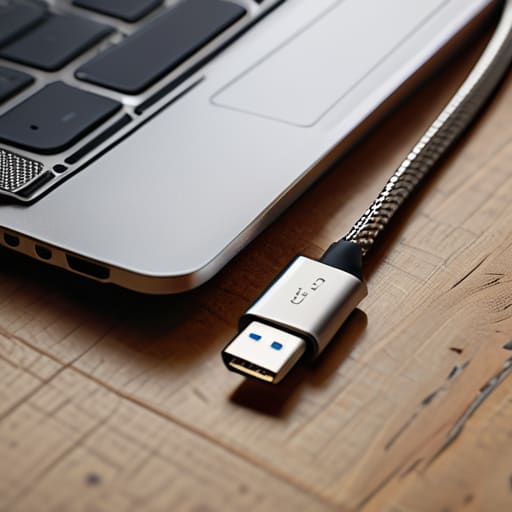
Look, I know we just talked about wireless options, but sometimes the “magic” of the cloud just fails you. Maybe your Wi-Fi is acting up, or you’re trying to move a massive video file that would take an eternity to upload. This is exactly when a physical USB cable file transfer becomes your best friend. There is something deeply satisfying about the tactile “click” of a cable and knowing that your data isn’t floating in some digital limbo—it’s moving through a wire, right in front of you.
If you’re dealing with a massive folder of high-res photos or a heavy project file, don’t bother with the headache of cloud storage synchronization only to have it stall at 99%. Instead, plug in and go. It’s often the fastest way to move large files without the anxiety of a dropped connection.
The only real catch is the friction of different ecosystems. If you’re struggling with transferring data between Android and iPhone, you might find the “plug and play” aspect a bit finicky depending on your OS. My advice? Don’t fight the software. If the cable feels like it’s putting up a fight, take a breath, check your settings, and if it still feels like a chore, pivot back to a dedicated tool. The goal is efficiency, not a battle of wills with your hardware.
My Rules of Thumb for Avoiding File Transfer Chaos
- Stop treating every tiny file like a major event. If it’s just a single screenshot or a quick PDF, don’t waste ten minutes setting up a cloud sync; just shoot it over via a quick messaging app or email and move on with your life.
- Name your files before you move them. I know, it sounds tedious, but there is nothing more soul-crushing than finishing a transfer only to find a folder full of “IMG_4829.jpg” and “Document_Final_v2_REAL_FINAL.pdf.” A little naming discipline now saves a massive headache later.
- Check your storage headroom before you start. I’ve learned the hard way that trying to move a massive video folder only to have the transfer hang at 99% because your phone is full is a special kind of hell. Do a quick 10-second purge of your junk files first.
- Stick to one “primary” ecosystem for your heavy lifting. If you’re constantly jumping between Mac, Windows, and Android, you’re going to lose time. Pick one method—like a specific cloud service or a dedicated external drive—that works across everything and make that your default.
- Always verify the “handshake.” Once the progress bar hits 100%, don’t just close the lid. Open the file on the receiving device to make sure it actually arrived intact and isn’t just a corrupted ghost of a file. It takes five seconds and prevents a total meltdown later.
The Bottom Line: Keep It Simple
Don’t overcomplicate it—choose the method that fits your current vibe, whether that’s the speed of a cable or the convenience of wireless.
Prioritize reliability over “fancy” tech; a system you actually use consistently is better than a high-speed setup that breaks every time you need it.
Protect your time by setting up these small, repeatable workflows once, so you aren’t scrambling to move files when you’re already in the middle of something else.
Forget the Tech Hype
Stop looking for the “perfect” high-speed setup that costs a fortune; the best way to move your files is whichever method is so simple you’ll actually use it when you’re tired, caffeinated, and just trying to get through your to-do list.
Nadia Halloway
Finding Your Flow
At the end of the day, there isn’t one “perfect” way to move your data; there’s only the way that works for your specific setup and how much time you actually have. Whether you’re leaning on the speed of a physical USB connection when you’re dealing with massive video files or opting for the seamless, zero-effort convenience of wireless sharing for a quick photo transfer, the goal is the same: get the job done without the headache. Don’t get caught in a loop of searching for the ultimate, most expensive software solution when a simple, repeatable system is already sitting right in your pocket or plugged into your laptop.
I know how easy it is to let tech friction turn a small task into a massive afternoon of frustration, but try to remember that these tools are supposed to serve you, not the other way around. Pick a method, test it out once, and then let it become muscle memory so you can stop thinking about file paths and start focusing on the work that actually matters. Life is messy enough without fighting your hardware every single time you need to move a document. Keep it simple, keep it functional, and just get back to your day.
Frequently Asked Questions
Is there a way to do this without paying for a monthly cloud subscription?
Honestly, please don’t fall into the trap of paying a monthly fee just to access your own data. It’s a total drain on your budget. If you want to skip the cloud subscriptions, stick to local transfers like AirDrop, Nearby Share, or even a simple physical external hard drive. They’re one-time costs (or free!) and they work instantly without needing a stable internet connection. Let’s keep your overhead low and your systems simple.
How do I move huge files, like video projects, without my internet crashing?
Honestly, trying to upload massive video files over Wi-Fi is a recipe for a meltdown. If your internet is already struggling, don’t even bother with the cloud. Grab a physical external SSD—it’s much faster and won’t hog your bandwidth. If you absolutely have to go wireless, use a local network transfer tool like LocalSend. It keeps the data within your own home network, so you aren’t fighting your ISP just to move a project.
Are these wireless methods actually secure if I'm working from a coffee shop?
Honestly, that’s a valid fear. Public Wi-Fi is notoriously sketchy. If you’re at a coffee shop, I’d steer clear of unencrypted transfers or random cloud links. Instead, stick to methods that use local connections—like AirDrop or nearby share—which don’t actually send your data out into the wild internet. If you must use the shop’s Wi-Fi, just make sure you’re using a VPN. It’s an extra step, but it’s worth the peace of mind.
What happens if my phone and laptop are from different brands and won't talk to each other?
Ugh, the “brand wars” are the absolute worst when you’re just trying to get stuff done. It feels like they’re intentionally making them play nice. If your Android won’t talk to your Mac, or your iPhone is being stubborn with your PC, don’t panic. You don’t need to buy a whole new ecosystem. Just skip the direct connection and use a “middleman” like a cloud folder or a simple web-based transfer tool. It’s not fancy, but it works.