Tips to Stop Your Laptop From Getting Too Hot
I was halfway through a freelance audit last Tuesday when my laptop started sounding like a jet engine preparing for takeoff. I sat there, staring at a screen that was literally throttling because I’d been working from my lap on the sofa—a classic mistake. We’ve all been sold this idea that if your computer is overheating, you need to drop eighty bucks on a glowing, RGB-lit cooling pad or some high-tech docking station. Honestly? Most of that is just expensive noise. If you’re actually wondering how to keep your laptop cool without turning your desk into a spaceship cockpit, you don’t need more gadgets; you just need better habits.
I’m not going to give you a list of shiny products to add to your cart. Instead, I want to share the small, repeatable systems that actually work when you’re working from a cramped kitchen table or a tiny studio apartment. We’re going to talk about airflow, basic maintenance, and the real reasons your hardware is struggling. Let’s skip the aesthetic productivity fluff and focus on keeping your tech alive and functional.
Spotting the Signs of Laptop Overheating Before Its Too Late
Most people don’t realize their computer is struggling until it literally shuts itself off mid-meeting. By then, you’re already playing damage control. The first thing I usually notice is a sudden, aggressive increase in fan noise. If your laptop sounds like it’s trying to take off for a flight just because you opened three Chrome tabs, that’s a massive red flag. It means your system is working overtime just to keep the components from melting.
Another subtle sign is the “lag spike.” If your mouse starts stuttering or your video calls begin to freeze, you might be looking at preventing CPU overheating in real-time. When the processor gets too hot, it intentionally slows itself down to protect the hardware—a process called thermal throttling. It’s frustrating, but it’s basically your laptop’s way of screaming for help.
Lastly, pay attention to the chassis itself. If the underside or the area near your keyboard feels uncomfortably hot to the touch, you’ve moved past “warm” and into “danger zone.” These signs of laptop overheating are your hardware’s way of telling you that the internal airflow is failing. Don’t wait for the dreaded blue screen; start listening to what your tech is telling you before the damage becomes permanent.
Why Preventing Cpu Overheating Matters for Your Long Term Setup
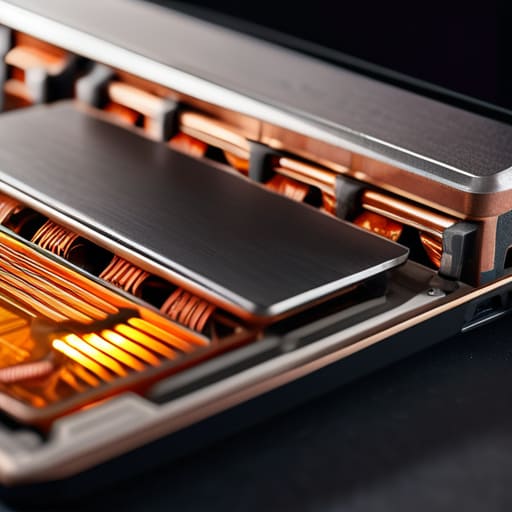
Look, I get it. We treat our laptops like these indestructible little black boxes that just work until they don’t. But the truth is, your hardware is incredibly sensitive to heat. When you’re constantly pushing your machine to its limit without preventing CPU overheating, you aren’t just slowing down your workflow; you’re actively shortening the lifespan of your most important tool. Heat is the silent killer of electronics. It degrades the internal components over time, meaning that expensive machine you bought two years ago might start acting like a glitchy relic much sooner than it should.
It’s not just about a sudden crash during a deadline, either. Constant high temperatures can lead to permanent hardware failure or even the need for a messy, expensive laptop thermal paste replacement down the road. I’ve seen too many people ignore the warning signs, only to realize they’ve turned a simple maintenance issue into a total system meltdown. Think of it like my mid-century furniture projects: if you don’t treat the wood properly from the start, the damage becomes structural and impossible to hide. Taking a few minutes now to focus on improving airflow in laptops is way cheaper than buying a brand-new replacement next season.
Five Low-Effort Habits to Stop the Heat
- Stop using your laptop on your bed or a plush rug. I know it’s cozy, but soft surfaces act like a thermal blanket, choking your vents and trapping heat. If you’re working from the couch, prop it up on a hard book or a flat tray to give it some breathing room.
- Give your fans a quick clean once a month. You don’t need to be a tech genius; just grab a can of compressed air and give the vents a few short bursts. It’s amazing how much a little layer of dust can act like a tiny, invisible insulator.
- Check your background processes. If your laptop sounds like it’s about to take off for Mars, you probably have twenty Chrome tabs and three heavy apps running in the background that you don’t actually need. Close what you aren’t using to take the load off your CPU.
- Ditch the fancy cooling pads if you don’t need them. Most of those expensive gadgets are just glorified fans that don’t do much. Instead, just make sure your laptop is on a flat, hard surface. If you must buy something, look for a simple stand that lifts the base off the desk.
- Watch your power settings. If you’re in a rush and just need to answer emails, switch your power mode to “Battery Saver” or “Balanced.” It throttles the performance slightly, which means your processor isn’t working at 100% capacity and generating unnecessary heat.
The TL;DR: Keep Your Tech From Melting
Stop the “lap-nap”—never use your laptop on a bed, couch, or anything fuzzy, because you’re basically smothering its ability to breathe.
You don’t need a $50 cooling pad to see a difference; just clearing the dust out of your vents and making sure there’s actual airflow goes a long way.
Pay attention to the noise; if your fans sound like they’re trying to take off for a flight, your laptop is screaming for help and needs a break.
The Real Cost of a Hot Laptop
“We tend to treat our tech like it’s indestructible until the moment it starts sounding like a jet engine or lagging mid-task. But keeping your laptop cool isn’t about buying expensive cooling pads or fancy gadgets; it’s just about respecting the airflow so you aren’t accidentally cooking your hardware every time you work from the couch.”
Nadia Halloway
Keeping It Cool for the Long Haul
At the end of the day, keeping your laptop from turning into a glorified space heater doesn’t require a massive overhaul of your desk setup or a shopping spree for high-end cooling pads. It really just comes down to the basics: stop working from your bed, keep your vents clear of dust, and listen to those warning signs like loud fans or sudden lag. If you can commit to these tiny, repeatable habits, you’ll save yourself from the massive headache of a fried motherboard and an expensive repair bill. It’s about being proactive rather than waiting for the dreaded blue screen of death to tell you something is wrong.
I know it’s easy to get caught up in the “aesthetic” side of tech—the RGB lighting and the perfectly curated desk setups—but real productivity is about reliability. Your tools should work for you, not the other way around. You don’t need a perfect, sterile workspace to maintain your gear; you just need to be intentional about how you use it. Treat your laptop with a little bit of respect, and it’ll keep showing up for you when the deadlines get heavy and life gets messy. Now, go clear that dust off your vents and get back to it.
Frequently Asked Questions
Is it actually worth spending money on a cooling pad, or is that just more clutter for my desk?
Honestly? Most of the time, it’s just more clutter. If you’re working at a desk and your laptop is on a hard, flat surface, you probably don’t need one. A cooling pad is a band-aid, not a cure. Save your money and just invest in a cheap, sturdy laptop stand instead. Elevating the base to let air circulate naturally does more for your machine—and your desk aesthetic—than a loud, plastic fan ever will.
Can my laptop survive if I keep using it on my lap or on a blanket while I'm working from the couch?
Look, I’ve been there—curled up on the couch with a coffee, trying to hit a deadline. But honestly? Your laptop is screaming for help. Using it on a blanket or your lap is basically suffocating it. Those soft surfaces block the vents, trapping heat like a thermal blanket. It might survive for a while, but you’re shortening its lifespan every single time. Grab a hard book or a cheap tray to act as a makeshift desk instead.
How often do I actually need to clean the dust out of my vents to see a difference?
Honestly, there’s no magic number, but if you’re a “laptop on the lap” person or have pets, you should probably check your vents every three months. If you notice the fan sounding like a jet engine taking off just to open a single Chrome tab, that’s your sign. Don’t wait for a year; a quick blast of compressed air once a season keeps the dust from turning into a literal felt blanket inside your machine.
Will running too many browser tabs or heavy apps at once actually cause permanent damage to my hardware?
Here’s the short answer: Not immediately, but it’s a slow burn. Running fifty Chrome tabs or a heavy video editor won’t make your laptop explode mid-sentence, but it forces your processor to work overtime. That constant high heat acts like a slow-motion wrecking ball for your internal components. Over time, it degrades your battery life and can even cause permanent hardware fatigue. It’s not a sudden crash; it’s just wearing your machine down piece by piece.